Follow ExportPilot from business setup and buyer discovery through reviewed outreach, professional documents and everyday export work. Every chapter includes the actual interface, a practical starting point and the limits to check.
Why it matters. Consistent business facts help you spot missing context before it reaches a customer.
What it does
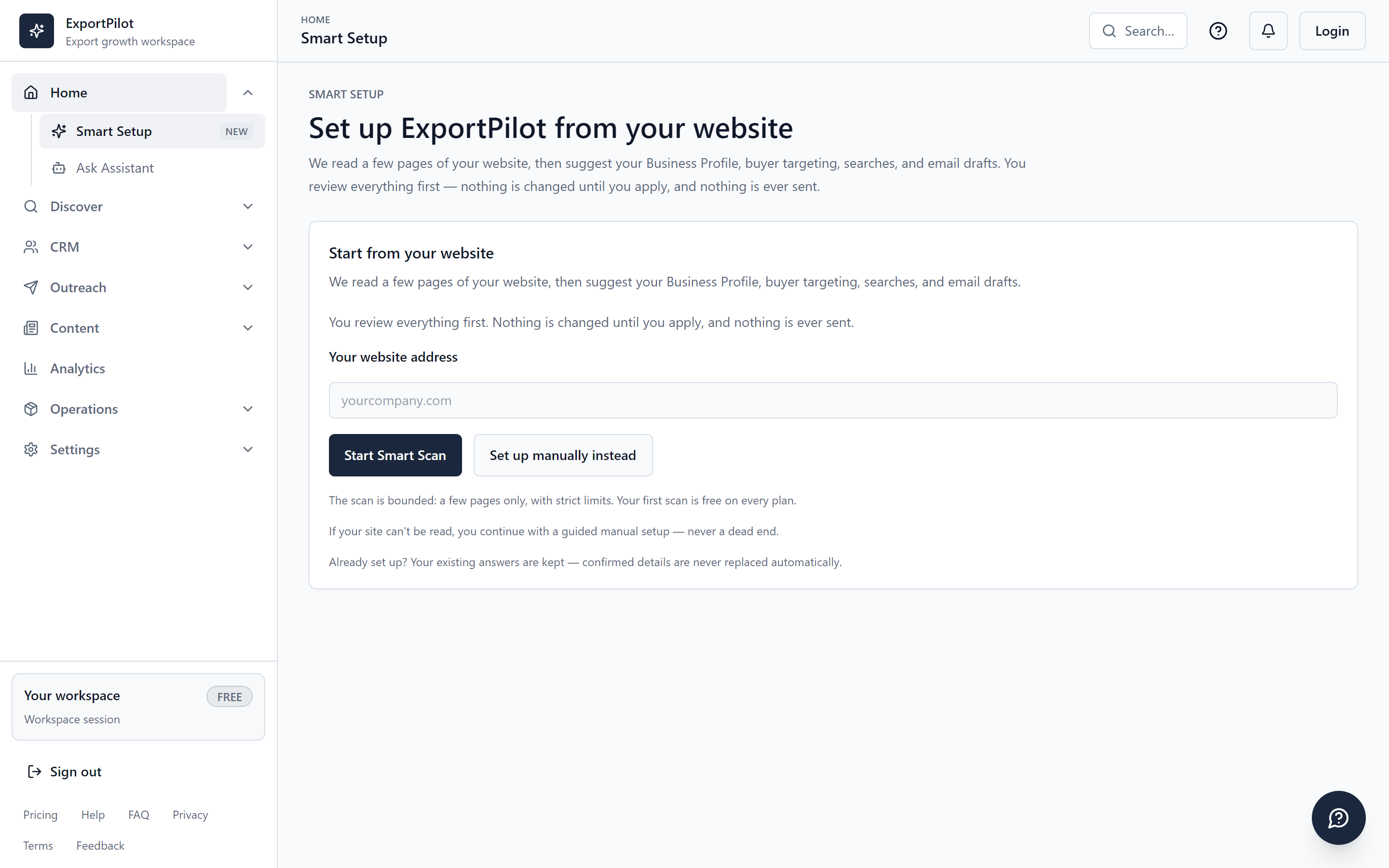
Start with what your company actually sells. Smart Setup connects your Business Profile, buyer targeting, search ideas, Email Studio drafts and an Outreach Pack draft in a proposal you review before applying.
Use it when
Before your first search or customer-facing draft.
Your output
A reviewed business profile, targeting choices and optional draft setup.
Create an account, confirm your email and complete the welcome prompts. Check Billing for your actual plan, allowances and any trial end date.
02
Open Business Profile and add accurate company, product, contact and branding information. Leave unknown facts blank.
03
In Smart Setup, provide your business website and request a proposal when you are ready. Review its sources, missing facts and proposed changes.
04
Choose the fields, targeting, queries and drafts you want to keep, then apply that selection. Open the saved result to review it; applying setup does not run a buyer search or send an email.
Chapter 02 · Buyer discovery & website research
Find a company. Inspect the evidence.
Why it matters. A source-backed shortlist gives you a reason to contact a company, beyond just having its name.
What it does
Research potential international buyers by product and market. Buyer Search, Website Review, Company Lookup and Website Analyzer help you move from a company domain to a lead worth reviewing.
Use it when
When you have a real product category and target market to investigate.
Your output
Public company evidence and a shortlist you can accept or reject.
Then
Approve a relevant result into the buyer workspace.
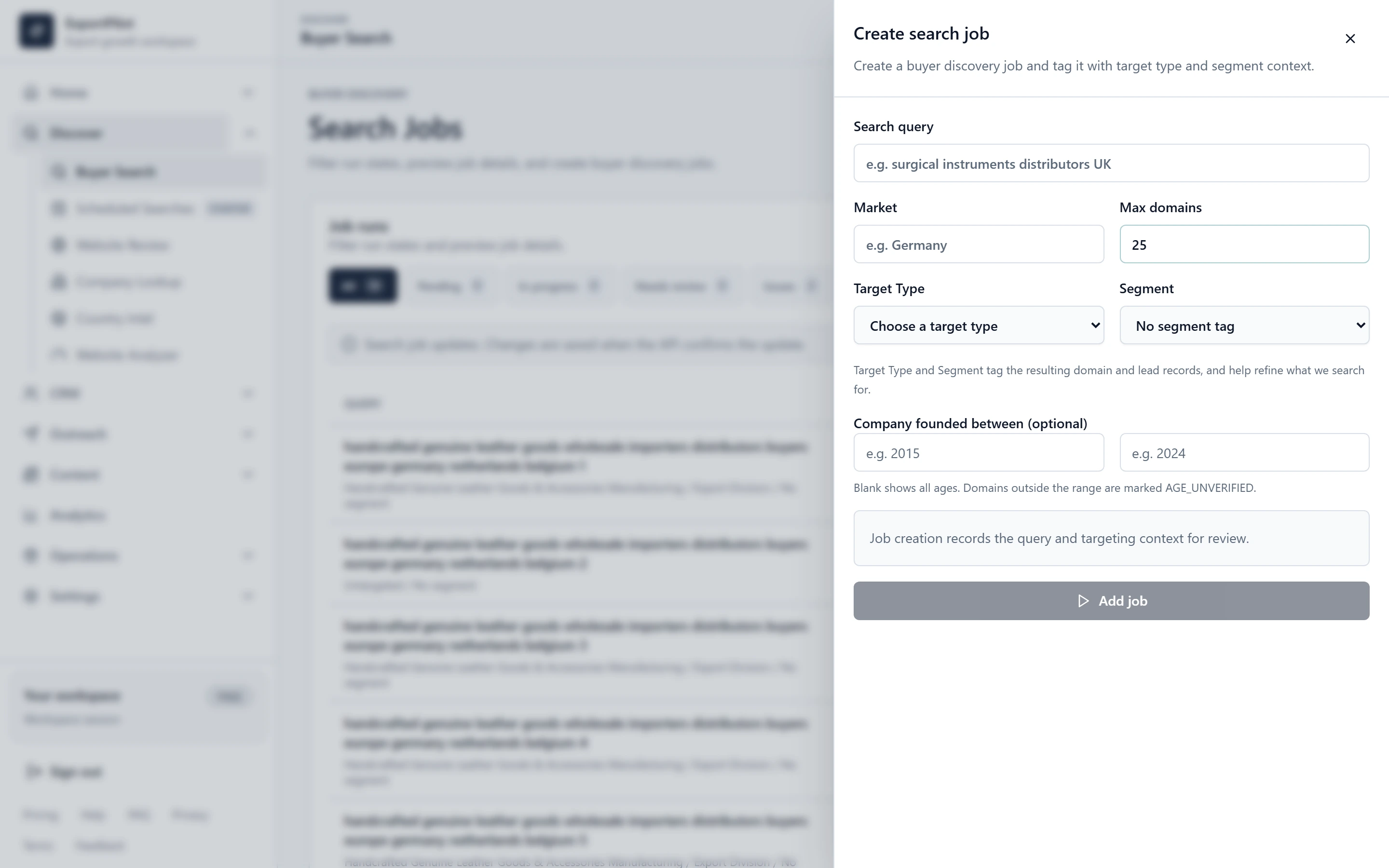
Open Discover → Buyer Search. Choose your real product category, target market and the relevant targeting options.
02
Review the query and available credits, then explicitly start the search. Opening Discover does not start it.
03
Open Website Review to inspect the returned domains and available company/contact evidence. Reject irrelevant companies and keep missing details unknown.
04
Approve a relevant result into CRM. If you want repeat research, separately configure a Scheduled Search and review its cadence and limits.
Chapter 03 · CRM & buyer workspace
One buyer record. A connected next step.
Why it matters. Keeping evidence and commercial activity with the buyer reduces the details lost between tasks.
What it does
Keep the company, contact, source evidence, notes, tasks, messages and commercial activity attached to the lead you selected. The buyer workspace is the handoff between research, outreach and invoices.
Use it when
As soon as a company is worth keeping and reviewing over time.
Your output
One buyer record with evidence, notes, tasks and commercial activity together.
Then
Prepare a fact-checked email draft for that buyer.
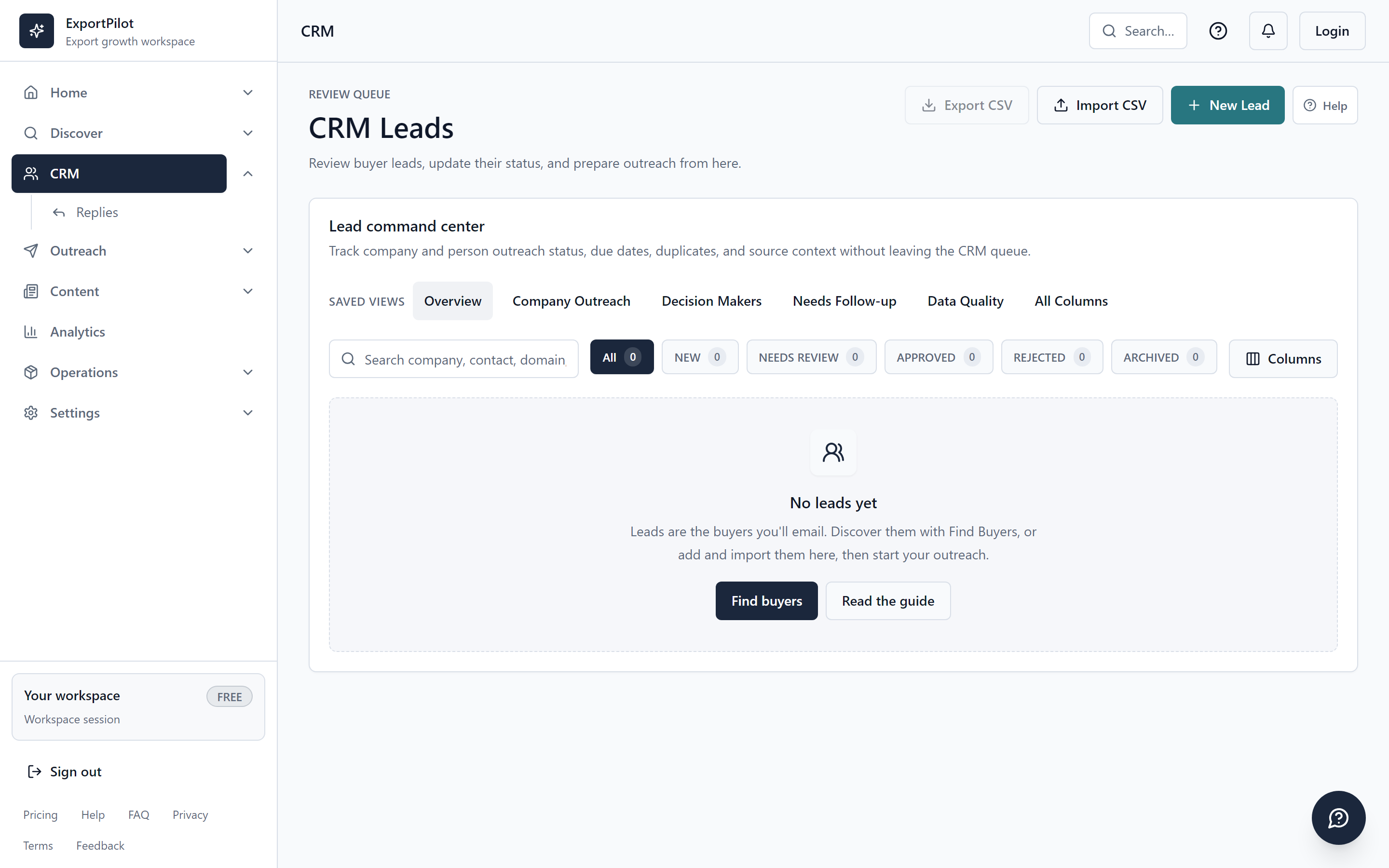
Save an approved discovery result or add a lead with details you know. Open that exact lead in CRM.
02
Review its company website, contacts and source evidence. If available, run an email check and read the result and verification depth.
03
Add the next task or a note. Use the lead workspace to prepare an AI draft, inspect a reply or start a commercial document.
04
Return to the timeline to review recorded activity and outcomes. A prepared draft, a sent message and a delivery event are different states.
Chapter 04 · Email Studio & Business Brain
Write from facts, then make it your own.
Why it matters. A reviewable draft makes personalization easier to check before you commit to a message.
What it does
CRM AI Draft and Email Builder reuse business and selected-lead context. Review Context used, Missing context, Facts used and Quality review, then request a targeted revision instead of starting over.
Use it when
When you know the purpose, recipient context and facts the message should use.
Your output
An editable draft with visible context, missing facts and quality guidance.
Then
Save the reviewed draft or use it in deliberate outreach.
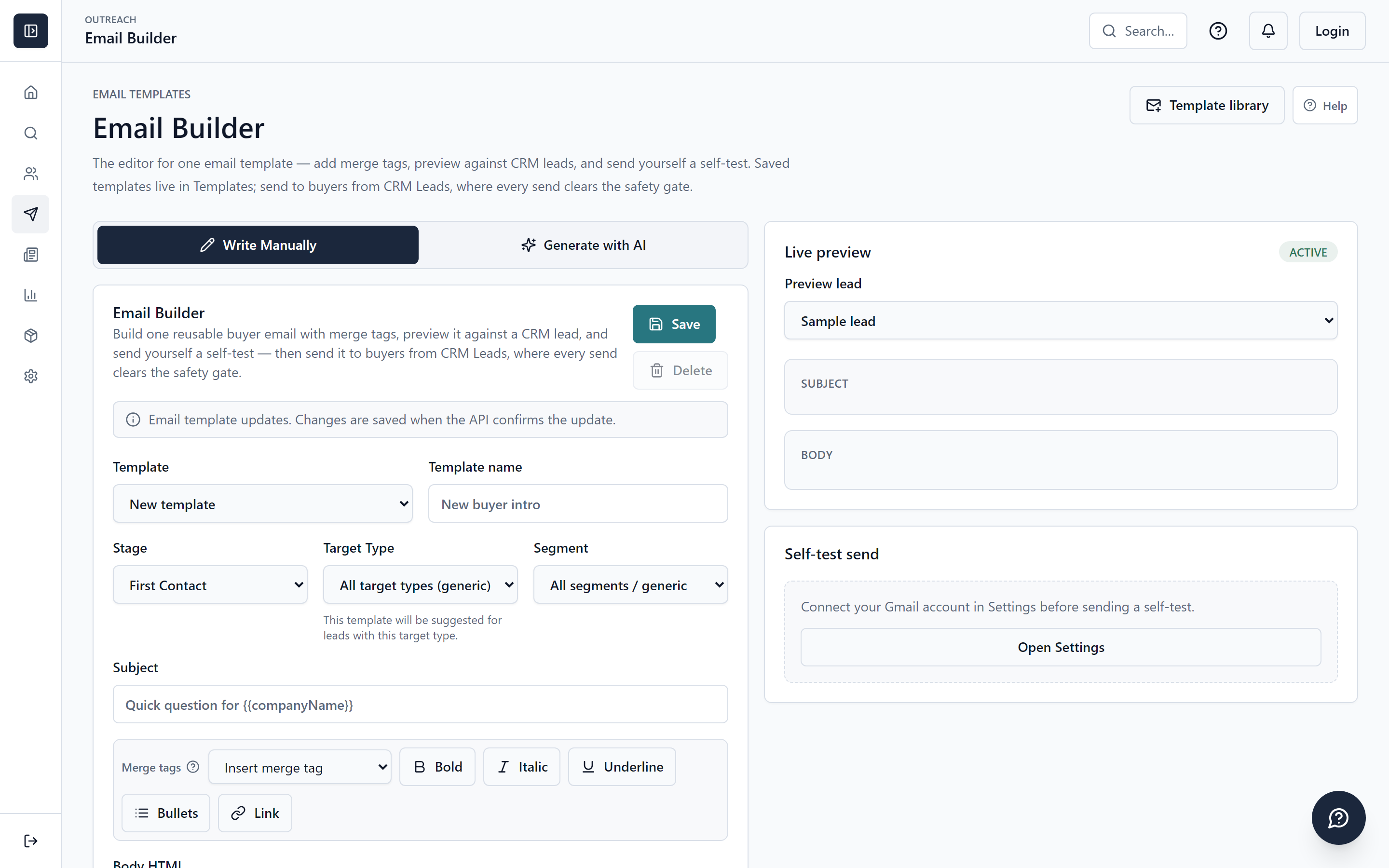
Open Email Builder, or start AI Draft from a selected CRM lead. Choose the purpose and relevant business or buyer context.
02
Check the context summary before requesting a draft. Add missing information only when you have reliable evidence.
03
Read the draft, facts used, missing context and quality findings. Remove unsupported claims and revise the specific part that needs work.
04
Edit and save the draft as a template when appropriate. Use Email Analyzer for a separate review of text you already have. Saving or generating a draft does not send it.
Chapter 05 · Outreach, follow-ups & replies
Keep follow-up deliberate and visible.
Why it matters. A clear contact plan helps you follow up deliberately and stop when the conversation changes.
What it does
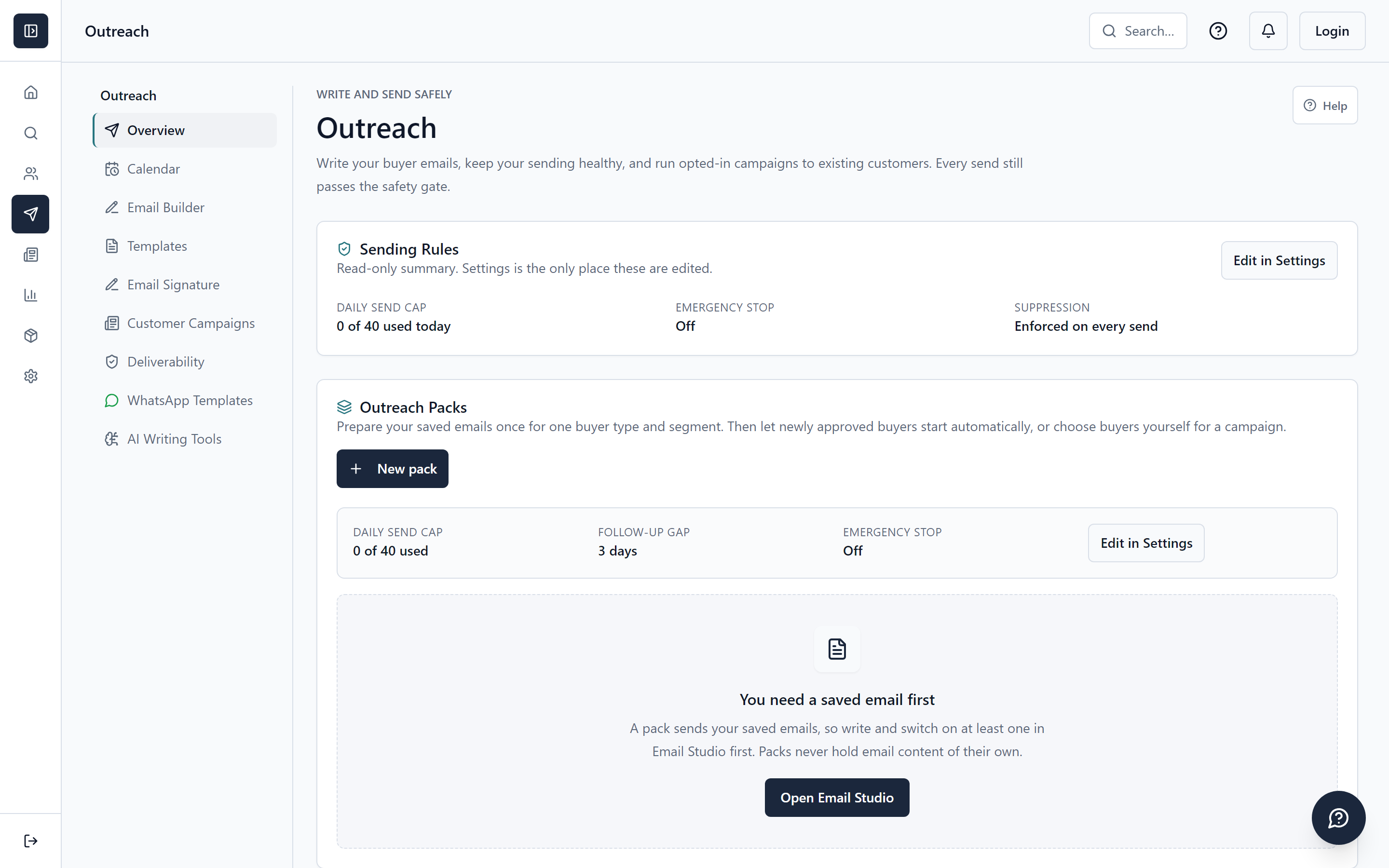
Use saved templates, Simple Outreach Packs, Sending Rules and the Outreach Calendar to organize the next contact. Replies and negotiation tools help you continue the conversation with its original lead context.
Use it when
When the recipient, sender, message and follow-up timing have been reviewed.
Your output
A recorded send outcome, follow-up plan or reply that stays connected to the lead.
Then
Continue the conversation or prepare the commercial document it needs.
Connect a supported sending mailbox in Settings when you are ready to send. Review its status, Sending Rules and any setup warning.
02
Choose the lead, sender and saved template. Inspect the actual recipient and message before confirming a send.
03
For follow-ups, review an Outreach Pack, its timing and enrollment selection before activating it. Configured automation can act later within its approved settings.
04
Check Upcoming work in the Outreach Calendar and review Replies. Incoming reply synchronization needs its own supported connection and consent; an outgoing SMTP connection alone does not sync an inbox.
05
Use WhatsApp templates for a manual handoff when appropriate. Review the destination and text in WhatsApp; opening it is not proof of delivery.
Chapter 06 · Invoices, export documents & PDFs
Turn the buyer conversation into a professional document.
Why it matters. Working from the selected buyer helps you keep paperwork consistent with the commercial conversation.
What it does
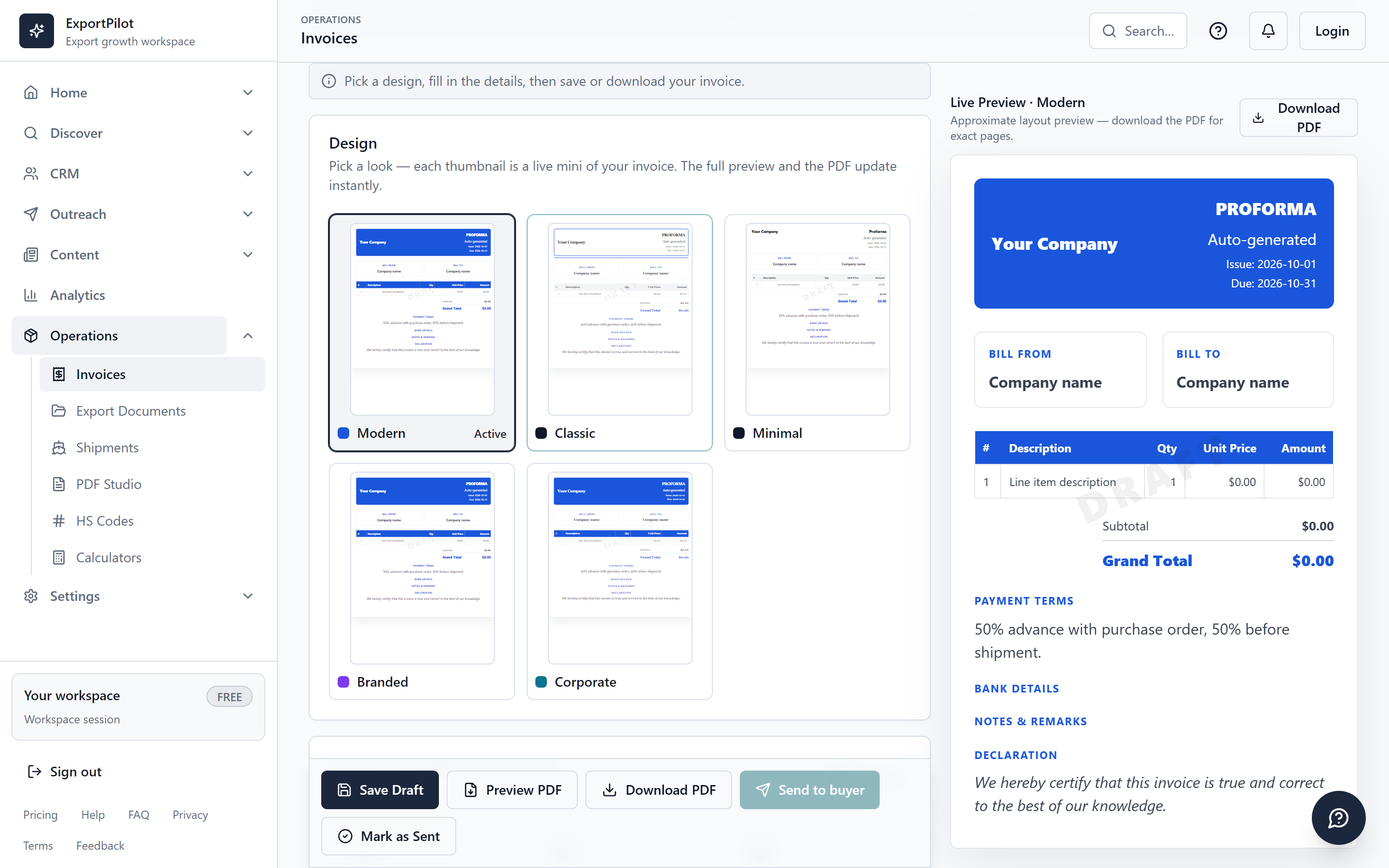
Prepare invoices and export-document PDFs using your Business Profile and the chosen buyer. PDF Workspace and PDF Tools cover document editing and preparation alongside the commercial workflow.
Use it when
When a buyer conversation needs an invoice, export document or prepared PDF.
Your output
A reviewed, downloadable document linked to the selected buyer when started there.
Then
Download it or review the recipient before sending it.
Buyer-linked commercial records and shipment document links
Reviewed email delivery and share links
PDF Workspace, signatures and form filling
PDF merge, split, stamp, annotate and rotate
How to use it
01
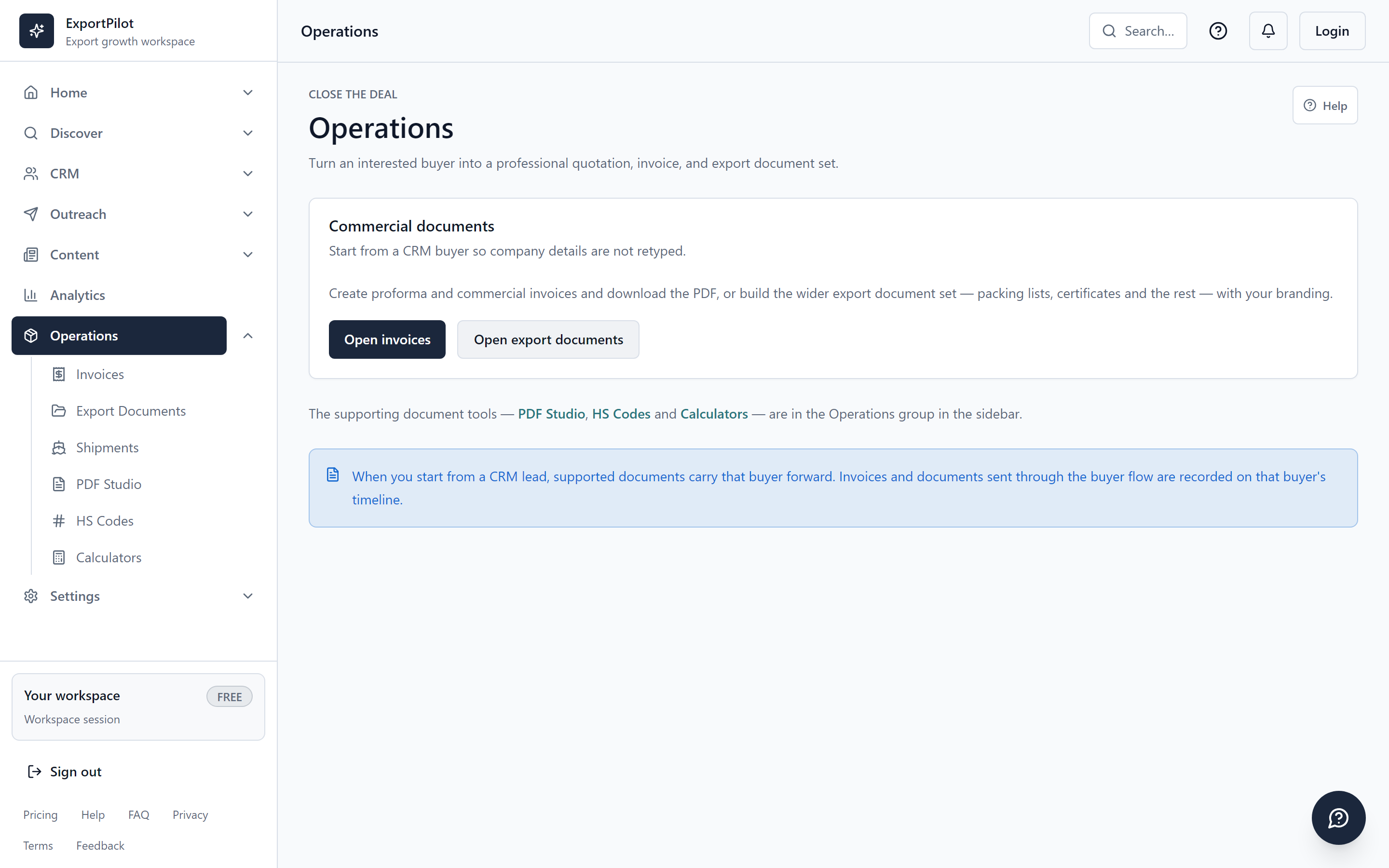
Open Invoices or Documents from Operations, or start from the exact buyer record to preserve the lead link.
02
Enter real line items, amounts, currency and commercial terms. Confirm business identity and buyer details before previewing.
03
Review the PDF, save it and download it if that is the next step. Use PDF Workspace or PDF Tools for the available editing and preparation actions.
04
If you choose Send to buyer, review the recipient and message separately. Check the recorded outcome and lead timeline; saving a document is not sending it.
Chapter 07 · Shipments & everyday export tools
Keep the practical work close to the buyer.
Why it matters. Keeping assumptions and milestones beside the order gives you practical context for the next decision.
What it does
Organize shipment records and document links, compare cost estimates and use supporting export tools without losing sight of the commercial record.
Use it when
When the buyer workflow reaches practical shipment, cost or classification work.
Your output
A saved record, estimate or research starting point beside the commercial workflow.
Then
Verify assumptions, record real milestones and ask for help when needed.
Cost, margin, weight, partnership and salary calculators
Offline HS code reference and AI HS Code Finder
Product Analyzer, Product Optimizer and Translator
Salary Slip Generator
Activity history, Help and services enquiries
How to use it
01
Open Operations and choose the tool needed for the current job: shipment record, invoice, document, calculator or code research.
02
For a shipment, enter known details and link the relevant documents. Record actual milestones with their dates instead of assuming a carrier status.
03
Use calculators with your own costs and assumptions. Review every saved estimate; it is not a carrier quote.
04
Use HS Code Finder as a research starting point and verify the classification independently. Use Help or Services to contact support when a setup or workflow needs assistance.
Chapter 08 · Opt-in newsletters
Give existing customers a reason to return.
Why it matters. Permission-based updates give existing customers a useful reason to hear from your business again.
What it does
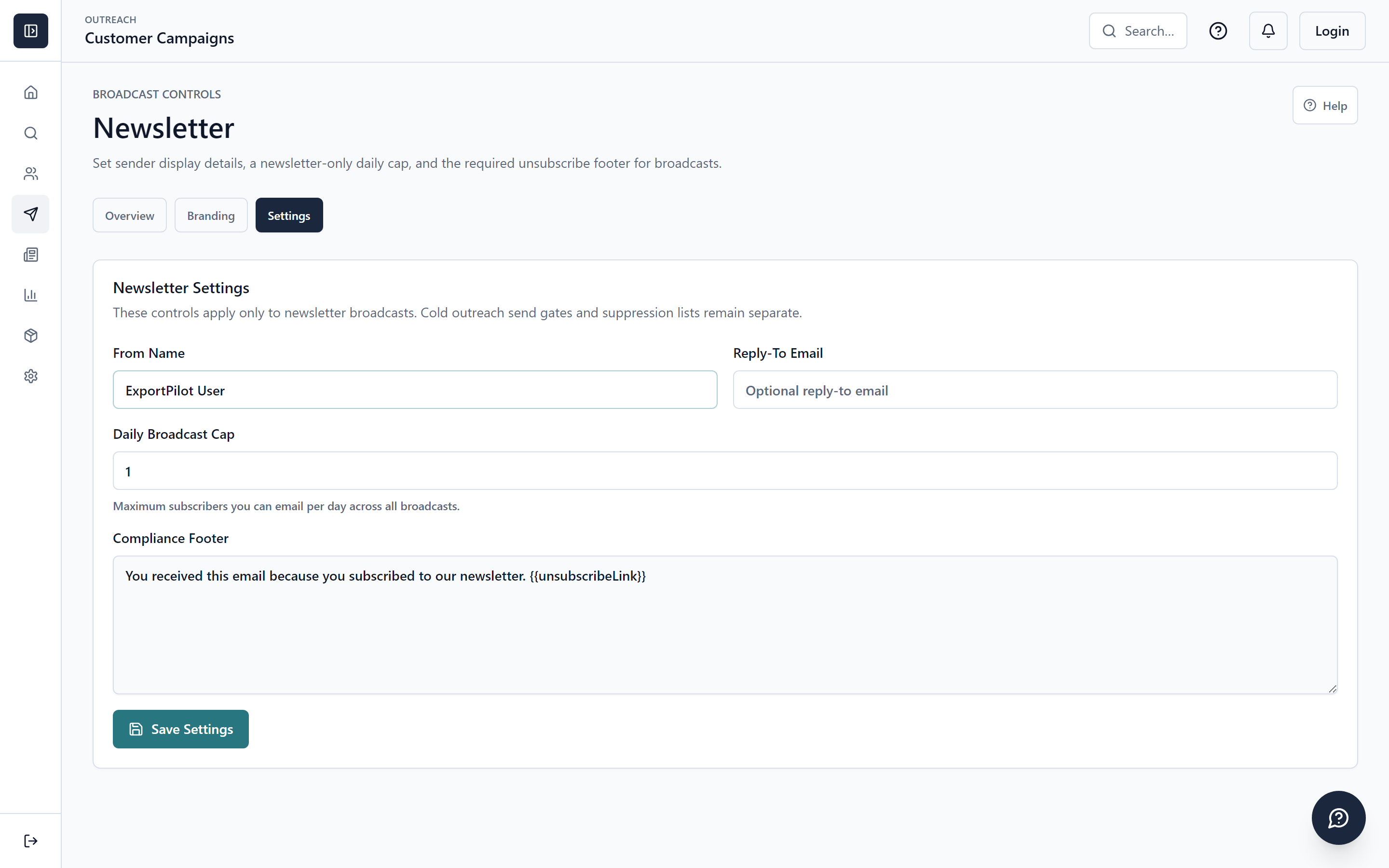
Share product updates, useful advice and new ranges with customers who opted in. Subscriber lists and branded newsletter campaigns help maintain the relationship, with business context kept separate from cold-outreach permission.
Use it when
When you have a separately permitted subscriber audience and useful update.
Your output
A reviewed campaign, audience selection and real campaign log.
Then
Inspect the recorded outcome and keep consent current.
Subscriber lists and consent-aware audience selection
Newsletter Composer and reusable blocks
Grounded AI drafts and quality review
Campaign preview, schedule and send logs
How to use it
01
Open Newsletter and choose or create an appropriate subscriber list on an eligible plan. Add only people for whom you have the required permission.
02
Start a campaign, select its list and prepare the content. Review business facts, branding and the unsubscribe information.
03
If you request an AI draft, check its sources, missing context and quality review, then edit it before saving.
04
Review audience, sender, preview and schedule before any send action. Inspect the campaign log for real outcomes rather than assuming every recipient received it.
Chapter 09 · Blog Creator & brand content
Help the next buyer discover your expertise.
Why it matters. Useful product knowledge can answer a potential buyer’s question before they contact you.
What it does
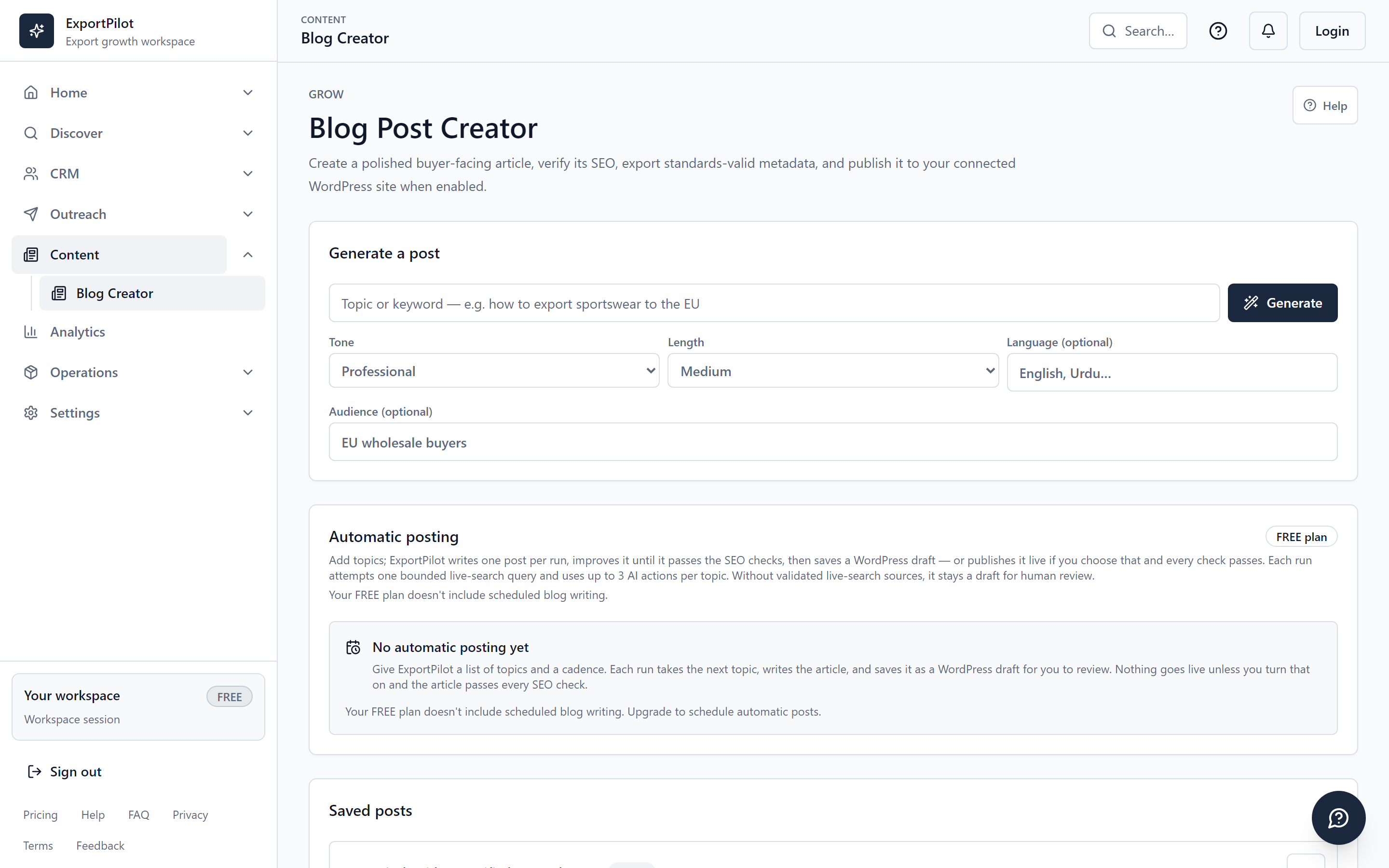
Prepare helpful articles for your target customers, review the SEO checklist and export them for your website. Connect supported WordPress publishing when enabled, then check the public page. Relevant content can help attract inquiries; traffic and rankings are not guaranteed.
Use it when
When your business needs an article or reusable customer-facing brand content.
Your output
An editable draft and export you can inspect before any publishing action.
Then
Publish only through a ready connection after final review.
Open Blog Creator from Content and define the topic, audience and source facts. Request writing help only when you are ready.
02
Check the outline and full draft for unsupported facts, links and repetitive claims. Use the SEO checklist to find specific improvements.
03
Review the final content and export it. A ready draft is not a published page.
04
Use WordPress publishing or a topic schedule only after the connection and feature are enabled. Check the actual remote publishing status and public page before claiming it is live.
Chapter 10 · Analytics, Country Intel & Assistant
Understand the evidence behind your next move.
Why it matters. Visible evidence and limits help you decide what to investigate, instead of treating a suggestion as certainty.
What it does
Use Analytics for recorded activity and buyer evidence, Country Intel for reviewable market research, and the separate Assistant workspace for questions about the records you choose.
Use it when
When a decision needs recorded activity, market context or a bounded question.
Your output
A reviewable report, brief or answer with its available evidence and limits.
Then
Carry the chosen action into discovery, CRM or operations.
Open Analytics to inspect recorded activity and available buyer evidence. Treat an empty or unavailable dataset as such.
02
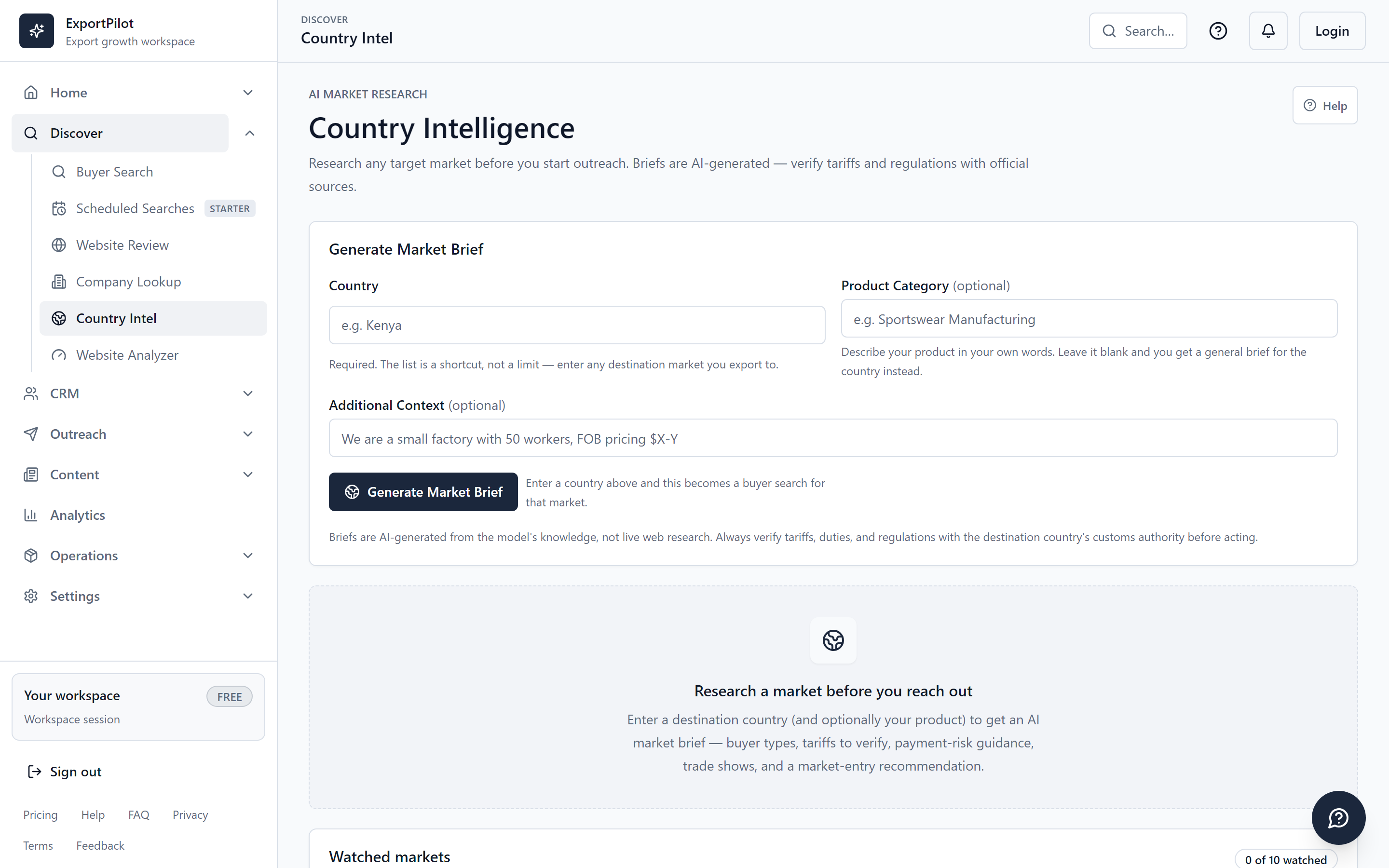
In Country Intel, choose a country and product before requesting a brief. Review sources, dates and any limitations, then save useful research.
03
Add a watchlist only if needed. Digest delivery is a separately configured capability, not something that starts on signup.
04
Open Ask Assistant, select the context you want it to use and ask a bounded question. Review its answer and carry out any next action yourself.
Your next useful step
Start with a real product and one market.
Create your account, add accurate business facts and review your first potential buyer. Pricing shows current limits; Services can help when setup or workflow support would save time.
 Inspect the interface HD